Tuesday, 7 January 2014

Windows Vista: Putting Your Computer into a Low Power Mode

When you're done using your computer for the day you should turn it off, but if you need to continue where you left off you can put it into a low-power state. There are two low power modes, the first is called sleep (a new feature in Vista) and second is called hibernation.

In sleep mode the hard drive is turned off, then the the monitor and motherboard are put in a low power state. In hibernation mode, a copy of RAM is saved to the hard drive, then it and the motherboard are turned off, then the monitor is put in a low power state.

When you press the power button on your computer or notebook, this will put your computer into a sleep or hibernation state (depending on which its setup to perform).

Another way to put your computer in a sleep or hibernation state is to create a shortcut that can do the same thing as pressing the power button. Follow the instructions below to learn how to do this:
  • Right-click an empty area on your computer's desktop, and select New > Shortcut.
  • In the field type: rundll32.exe PowrProf.dll,SetSuspendState
  • Give the shortcut a descriptive name, then press the Finish button.

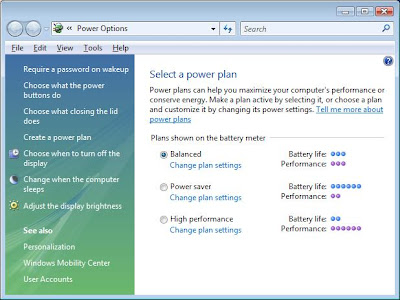
Windows Vista: Power Options

Windows by default can go into hibernate or sleep when they have been inactive for a period of time. To control when your computer hibernates or goes in to sleep mode follow the instructions below:
  • From the Start menu, in the search field type power options, then click on it in the results.
From here you can select which power plan you want your computer to use (such as balanced [balances power and performance], power saver [computer runs slower, but gives you more battery life], or high performance [damn the torpedoes, full speed ahead]), customize the power plan preferences (such as how long to wait before going into that a low power mode), require a password on wake up, and a lot more.


Windows Vista: Managing Services (Part 1)

All modern operating systems have several programs that run in the background. These programs are known as Services. Some of these services perform mundane tasks, while others perform critical system operations.

Unless you're performing some type of system maintenance or diagnostics, you will almost never need to worry about them. Most of the time they run quietly in the background and you won't even know that they're there.

Although, if you need to know how to access them, follow the instructions below:
Warning: If you disable any critical system services you can prevent Windows from working correctly. So make sure that you understand exactly what function a service does before you disable it. As always proceed at your own risk.
  • From the Start menu select 'Control Panels', then open the 'Administrative Tools' folder.
  • Double-click the Services icon. If you have the UAC enable it will ask you to confirm this action.
  • When the Services management console opens, you will see a list of services installed on your computer.
In the next part of this article, I discuss how to manage the different services.

Windows Vista: Managing Services (Part 2)

In the first part of this article I explained how to access the services installed on your system. Now I am going to discuss how to manage them.

From the Services management console you can start, stop, restart, or disable the different services on your system. When you start or stop a service, that is very obvious what it does. Although when you stop a service, it's only stopped until you reboot your computer.

When you restart a service, it stops and starts it again. When you disable a service, that prevents the service from restarting next time you reboot your computer.

You also need to be aware that some services can have dependencies, and if you stop one it can have a cascade effect and stop other related services. For example, if you opened the 'DHCP Client' service, and clicked on the Dependencies tab you would see the other services that rely on it.

Below is a brief explanation of the different tabs in the Service dialog box:
  • General: Displays the state of the service, and where the related executables are located.
  • Log On: Allows you to manage the which account the service uses to run.
  • Recovery: Allows you manage how a service will try to recover itself if it fails.
  • Dependencies: Shows you which other services dependencies on that service.

Windows Vista: Turning Off Features

If you installed Windows Vista on your computer yourself, you may have noticed that you were not asked a lot of questions during the installation of the OS. Vista makes several assumptions about what it will and will not install for your computer.

It tries to install the applications and features that people will most often use. Although like anything that makes automatic assumptions for you it will never be 100% correct. If you find there is an application or functionality that you need or don't need you can add or remove it by using the 'Programs and Features' control panel.

Follow the instructions below to add or remove features from Vista:
  • Under the Start menu open the Control Panel folder, then select the 'Programs and Features'.
  • In the tasks pane on the left, click the 'Turn Windows features on or off' link.
  • Check or uncheck the features you want to install or remove. Each feature has a checkbox next to it to indicate whether its installed or not. If you want to install a feature, just check it. If you want to uninstall an existing feature uncheck it. Some items have a '+' next to it, this indicates that there are sub-features that you can enable or disable.
When you uncheck a feature, this doesn't remove that feature from your computer, it only disables it so its not consuming system resources. You can also re-enable any feature you disabled by re-checking its checkbox.

Security: Darik's Boot and Nuke (Hard Drive Disk Wipe)

Darik's Boot and Nuke ('DBAN') is one of those tools that has become a standard in its class (i.e. data destruction), and best of all its free. DBAN is a self-contained boot disk that can securely wipe your hard disks.

DBAN can use several different data destruction techniques (such as: 'American DoD 5220-22.M Standard Wipe') that can prevent or thoroughly hinders all known hard disk recovery methods.

Note: This software is not perfect, and can't promise to make it impossible for any of the data to be recovered. To do this, you would need to physically destroy the drive.
To use DBAN, all you have to do is download the ISO from the site, burn it to a CD, and boot your computer with it. All the instructions are on the CD.

Windows Vista: Windows Server 2008 Remote Server Administration Tools

For those systems administrators that support Windows 2008 servers, this post is dedicated to you.

Microsoft has finally release the Windows Server 2008 Remote Server Administration Tools for Windows Vista Service Pack 1 (SP1). This software allows you to remotely manage roles and features in Windows Server 2008 from a Windows Vista SP1 workstation.

This software provides similar functionality to the Windows Server 2003 Administration Tools Pack. It also includes support for remote management of Windows 2008 servers running either the server core or a full installation option.